USB-C Dock Charges Your Laptop but the Monitor Is Blank?
Check video support, host ports, cables and display settings when a USB-C dock delivers power but no picture.
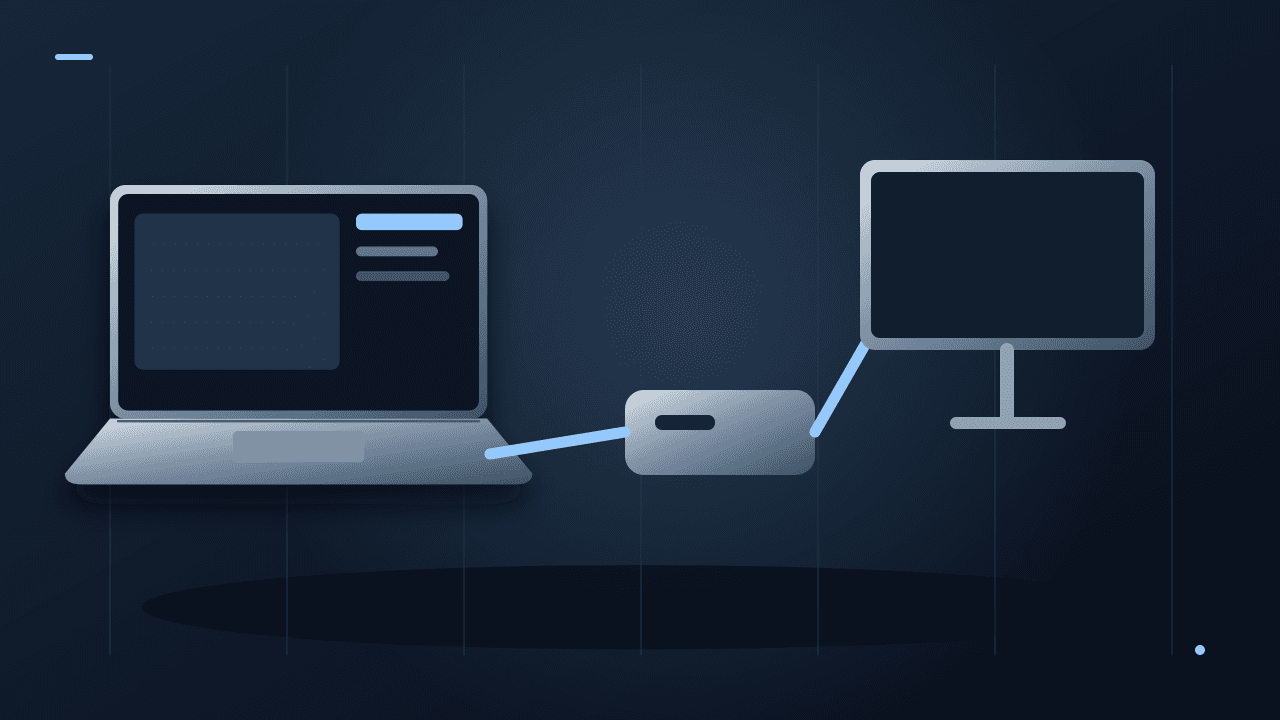
Your laptop charges through a USB-C dock, the keyboard works, and the monitor stays black. It is tempting to assume the dock is broken. Charging and USB data working only prove that those parts of the connection work; they do not prove the complete video path is supported.
Trace the display connection from the laptop's port to the monitor's selected input. Check the capabilities of each part before buying another adapter that may have the same limitation.Draw the path you are trying to use
Write down the exact laptop model, which port is connected, the dock model, the host cable, the video cable and the monitor input. Include adapters. “USB-C to monitor” often hides several separate products and assumptions.
Microsoft's USB-C troubleshooting guidance distinguishes charging, USB connections and display capabilities. A port or cable must support the relevant mode; the connector shape is not enough. Microsoft's USB-C guide covers these distinctions.
Find the laptop manual's port diagram. Look for the specific port's video or Thunderbolt/USB4 capabilities, and compare them with the dock's host requirements. Do not assume two USB-C ports on one laptop have identical functions.
Identify the kind of dock
Many docks carry a native display signal through DisplayPort Alt Mode or Thunderbolt. Other products use USB graphics technology and require supported software or drivers. Read the dock manufacturer's compatibility page rather than installing random drivers until something changes.
A workplace laptop may restrict driver installation. Check with its administrator before choosing a dock that depends on additional software. Also check whether the advertised number of screens applies to your operating system and laptop, not just to the dock in isolation.
Dell's monitor daisy-chain guidance lists requirements across the computer, displays and connection types. It is a useful example of why multiple-monitor capability depends on the whole chain. Dell's multi-display guidance explains supported arrangements.
Reduce the setup to one screen
Disconnect the extra displays and nonessential accessories. Use the dock's specified host cable, connect one monitor directly to a documented video output, and select that input using the monitor's controls.
If the laptop has another documented display output, try a direct connection with a known-compatible cable. A working direct path narrows the investigation toward the dock route; it does not prove every component in the dock route is faulty.
Change one thing at a time and record the result. Swapping the dock, cable and monitor input together can restore the picture while leaving you unable to identify the cause.
Check resolution and refresh rate
If a picture appears at a lower setting but not at the intended one, inspect the supported combination of resolution, refresh rate and display count. A product marked “4K” may support different refresh rates or different limits when several screens share the connection.
On Windows, choose the relevant display in Settings, System, Display, then inspect Advanced display. Microsoft's refresh-rate guide explains that available choices depend on the display and configuration. See Microsoft's instructions.
Use documented supported settings rather than forcing an unsupported mode. Our 27-inch monitor guide explains how resolution and scaling affect the buying decision.
Check power as a separate problem
A dock can reserve some input power for itself, and the amount delivered to the laptop may differ from the adapter's headline rating. Consult the dock's power specification. A machine charging slowly under load is a different symptom from a missing picture, even if both arise in the same setup.
Likewise, a replacement cable chosen only for its high charging wattage may lack the video or data capability you need. Match both requirements before ordering.
What to send support if it still fails
Give the vendor the complete connection path, operating-system version, intended screen mode and the results of the one-screen and direct-connection tests. A photo of the relevant port labels can help; keep serial numbers and personal screen content private unless the support channel needs them.
That evidence is more useful than “USB-C does not work,” and it can reveal incompatibility before you spend money replacing functioning hardware.
Documentation-based troubleshooting checked October 8, 2026. No specific dock fault was reproduced; the isolation sequence is a suggested diagnostic workflow.About the author
UbedullaFounder & Editor
Founder and editor of The Bot Post, covering AI news and technology.