Moving from Android to iPhone? Check These Before You Wipe
Plan the transfer, verify photos and messages, and keep access to banking and authentication apps before erasing your old Android phone.
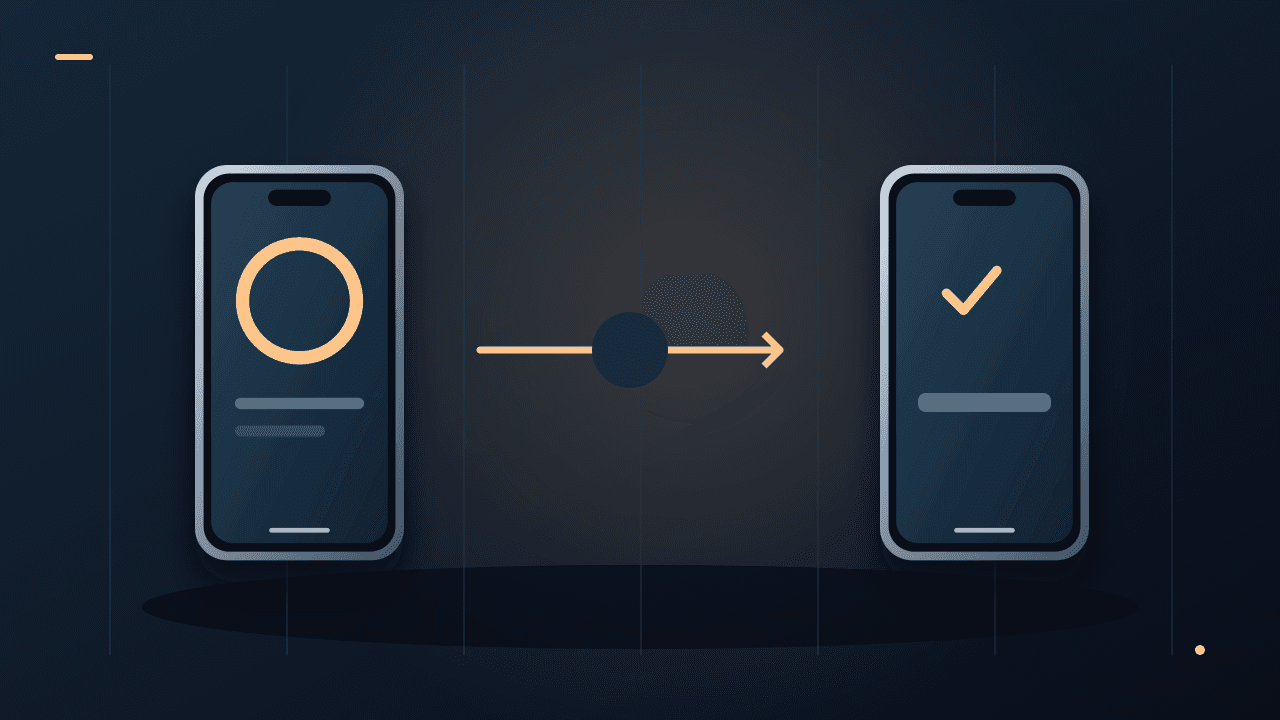
Seeing your photos appear on a new iPhone feels like the move is complete. Then a banking app asks for verification from the old device, or an authenticator code is missing. The risky part of switching phones is often account access rather than copying pictures.
Keep the old phone intact until both your content and your essential accounts work on the new one. A successful transfer progress bar is a milestone, not the final check.Make an inventory before starting setup
List the things you would struggle to replace: contacts, messages, camera photos, downloaded documents, voice recordings and anything stored on a memory card. Then make a separate list of access tools: your main email, password manager, authenticator, bank, work account and phone number.
The second list deserves its own checklist because copying an app icon does not establish that its credentials, device registration or security keys moved. Check each provider's official transfer or recovery instructions while the old device still works.
Back up important data independently. Make sure you know the passwords and recovery methods for the accounts you need. Do not put recovery codes in a public document or send them to someone offering to help with the move.
Choose the correct migration route
Apple's Move to iOS workflow runs during initial iPhone setup. Its documentation also describes a separate app-free route for compatible supported Android 17 devices, so use the instructions that match your devices. For the app route, select the Android transfer option during setup, connect the devices as directed and wait for the iPhone's progress to finish. Apple's current migration guide lists requirements and transferable content.
Check capacity first, including files on a microSD card. An advertised storage tier is not all available for transferred files. Keep both phones powered and avoid interrupting the process to experiment with other settings.
If the iPhone is already set up, Apple's automated route requires erasing it and starting again; manual transfer is an alternative. Back up any new iPhone data before considering an erase. Do not wipe a device merely because a tutorial assumes it is empty.
Verify content by sampling the awkward cases
Open your oldest and newest important photos, play a longer video, search for a specific contact, and find a message thread with an attachment. Open a document from Downloads rather than only looking at its filename.
These checks are an original verification plan, not a claim that every file type transfers automatically. A small sample cannot prove complete integrity, but it can reveal obvious omissions while the source phone is still available.
Check WhatsApp separately. Apple includes WhatsApp messages and media in its supported transfer list, but that does not mean an Android cloud backup can simply be restored through an unrelated iPhone backup screen. Follow the migration prompts and the app's current guidance before changing numbers or deleting anything.
Treat your phone number as its own transfer
Moving files and activating cellular service are distinct tasks. Carrier support determines SIM and eSIM options. Apple's eSIM setup documentation identifies several activation and transfer routes, with availability depending on carrier and device. Check Apple's eSIM setup guidance and your carrier's instructions.
After activation, test a normal call and text. Then test the verification method used by an essential service. Do not assume a data connection proves that incoming SMS works or that the old phone number remained attached to every account.
Your final sign-off list
- Main email and password manager open on the new phone.
- Authenticator or other second-factor access works through the provider's supported process.
- Banking and payment apps complete their own reactivation.
- Important messages, media and documents pass spot checks.
- Calls, SMS and mobile data work as expected.
- A separate backup exists for irreplaceable files.
Only after these checks should you follow the manufacturer's erase and account-removal instructions for selling or recycling the Android device. Remove a physical SIM and memory card if appropriate. A seller's trade-in deadline is worth checking before you begin, so you are not pressured into wiping early.
Must I move everything on the same day?
No. You can make the new phone usable and keep the old one securely available while verifying less urgent apps. Plan around work and travel so a failed login does not become an emergency.
Our eSIM buying guide covers the questions to ask before changing carrier or travelling.
Documentation-based checklist, checked October 8, 2026. We did not perform an Android-to-iPhone migration for this article.About the author
UbedullaFounder & Editor
Founder and editor of The Bot Post, covering AI news and technology.