27-Inch 1440p or 4K Monitor? Choose for Text, Work and Games
Compare pixel density, scaling, refresh rate and connection limits before choosing a 27-inch 1440p or 4K monitor.
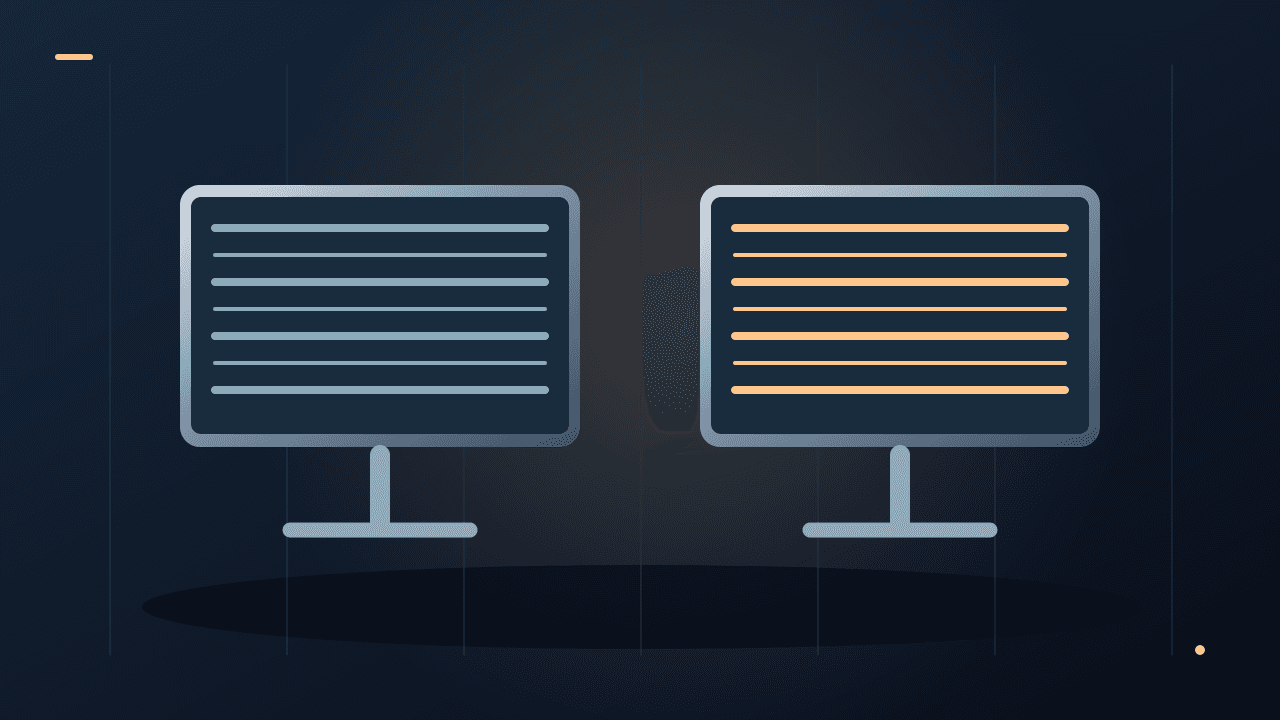
Two 27-inch monitors can occupy almost the same space while making text look quite different. A 4K panel has more pixels, but that does not necessarily mean you should fit more tiny windows onto it.
Choose 4K when sharper text or detailed images justify the price and your computer can drive the desired mode. Consider 1440p when cost, refresh rate or gaming demands make it a better overall fit. Judge the exact display, not resolution in isolation.What the numbers mean at 27 inches
A 2560 × 1440 display contains about 3.69 million pixels. A 3840 × 2160 display contains about 8.29 million: 2.25 times as many. At the same 27-inch diagonal, their calculated pixel densities are approximately 109 and 163 pixels per inch.
These are geometric calculations, not visual test results. The formula is the square root of horizontal pixels squared plus vertical pixels squared, divided by the diagonal in inches. The 4K panel has about 1.5 times the linear pixel density, not 2.25 times; the larger factor refers to total pixel count.
More pixels can draw finer edges, but viewing distance, eyesight, software rendering and the panel itself influence what you notice. Try a real document at a comfortable size rather than judging a wallpaper in a shop.
Scaling prevents sharper text from becoming tiny text
Operating-system scaling increases the size of interface elements while using the screen's pixels to draw them. On Windows, Microsoft recommends checking the Scale setting in Display settings and generally using the display's recommended resolution. Lowering resolution can make text less sharp. Microsoft's resolution and layout guide explains these controls.
As a simplified comparison, a 4K desktop at 150% scaling has a logical workspace around 2560 × 1440. That can provide a similar amount of room to an unscaled 1440p desktop with finer rendering. Individual applications can behave differently, so test the software you actually use.
Do not buy 4K solely because you expect every window to become smaller and every spreadsheet to show more columns. You may prefer a comfortable scale that uses the extra pixels for clarity instead.
Refresh rate is a separate choice
A higher refresh rate can make motion look smoother, but the computer, connection and application must support the intended use. A monitor may expose different refresh options at different resolutions.
Microsoft's Advanced display settings show available refresh-rate choices; its documentation notes that some selections can require changing resolution. Read Microsoft's refresh-rate guidance.
For games, compare reliable benchmarks at the resolution and settings you plan to use. Rendering 2.25 times as many pixels does not imply an exact 2.25-times frame-rate penalty in every game; other limits and rendering technologies affect the result.
Check the complete connection before ordering
Write down the laptop or graphics-card output, any dock, the cable and the monitor input. Confirm the desired resolution and refresh rate across that complete route. “Supports 4K” on an adapter box is incomplete if it omits the refresh rate or multi-display conditions.
If a dock charges the laptop but fails to produce the expected picture, our USB-C display troubleshooting guide helps trace the limitation.
Also check whether a USB-C monitor supplies enough power for your laptop if one-cable use is important. A screen can be excellent while still being the wrong docking solution.
Try this before deciding
Open a document with small punctuation, a spreadsheet with several columns, your usual browser and a familiar photograph. Use the scale you would actually keep. Read for several minutes at your normal desk distance, then inspect scrolling and window movement.
Check stand height, tilt, brightness controls, reflections and the return policy. Those details can influence daily comfort more than a specification you rarely notice. Resolution does not establish colour accuracy or a good HDR experience by itself.
Which would you choose for ordinary office work?
For text-heavy work, I would shortlist 4K if the budget and connection allow it, then verify scaling in the actual applications. If that premium compromises a suitable stand or another essential feature, a good 1440p display remains a sensible candidate.
Original pixel calculations and documentation-based advice, checked October 8, 2026. No monitors were visually compared or benchmarked for this article.About the author
UbedullaFounder & Editor
Founder and editor of The Bot Post, covering AI news and technology.