Slow Android Phone? Diagnose It Before a Factory Reset
Find out whether your Android slowdown comes from the connection, storage or an app, with a repeatable checklist before you consider resetting.
A page that refuses to load and a keyboard that takes two seconds to appear both feel like a slow phone. They can have very different causes. Buying another handset—or wiping this one—before separating those symptoms can waste time and money.
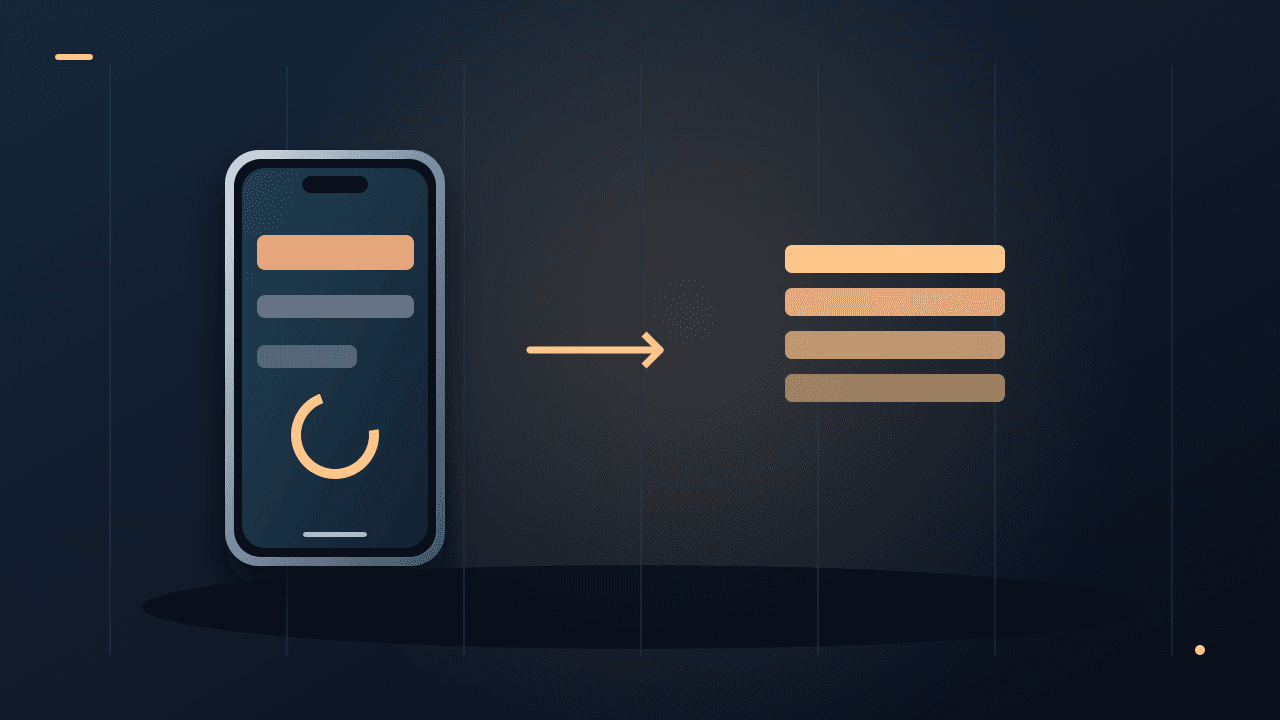
Start by comparing an offline task with an online task. Then change one thing at a time and repeat the same action. The purpose is to identify where the delay happens, not to make every number on a settings screen look smaller.Run this five-minute comparison
Open Settings, type a short note, and open a photo already saved on the device. Then load a familiar website and send a message. Record what is slow: opening the app, typing, downloading, or waiting for another person or service to respond.
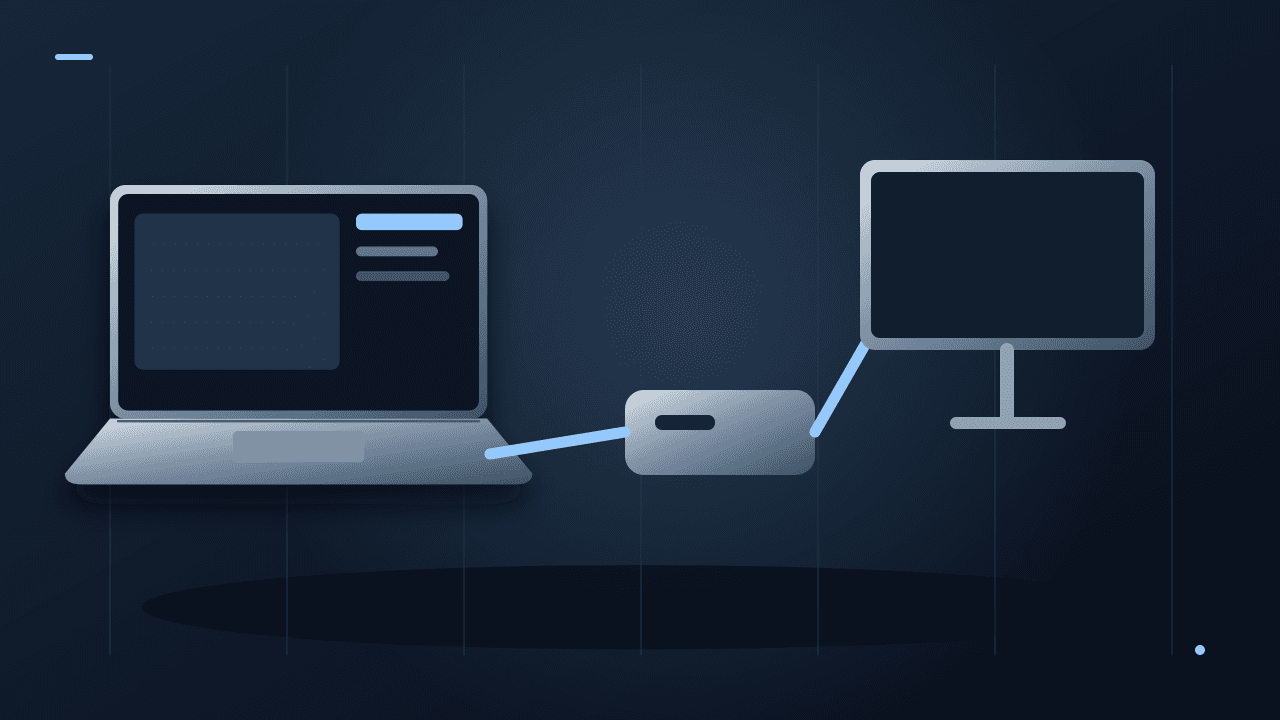
Try the online task on another connection if you can do so without unexpected mobile-data charges. If local actions are smooth and websites improve immediately on the other connection, investigate the network before the phone's processor. Google's Android troubleshooting guide also separates internet trouble from device performance. Read Google's slow-device guidance.
You do not need a benchmarking app for this comparison. You need a task you can repeat under similar conditions. Use the same document or page, and note whether the device is charging, unusually hot or downloading a large update.
Keep a small change log
| Action | Before | Change | After |
|---|---|---|---|
| Type in Notes | Your observation | Restart | Your observation |
| Open downloaded photo | Your observation | Free some storage | Your observation |
| Load a website | Your observation | Different connection | Your observation |
The table is a worksheet, not a set of measured results. A change that helps one task but not another is useful information. It may reveal two separate problems instead of one.
Check the low-risk causes first
Restart the device, check for system and app updates, and inspect available storage. Google says problems can begin when less than 10% of storage remains free. That is a troubleshooting threshold, not a guarantee that freeing precisely 10% fixes every phone.
Google’s storage-cleanup guidance distinguishes stored files from working memory. Remove downloads you can obtain again before touching irreplaceable files. Back up personal material and verify it before deleting local copies. Avoid clearing an app's data simply because its storage number is large: that can remove local settings, downloads or work you still need.If photos occupy most of the space, use the correct service-specific process in our photo cleanup guide. Deleting from a synchronised library is different from removing a backed-up local copy.
Investigate the app that matches the timing
If the slowdown began after an installation, start there. Check whether an update is available, whether other users or the developer report an outage, and whether the problem happens outside that app.
Google recommends safe mode as a way to test with downloaded apps temporarily disabled. The method varies by manufacturer. Follow your phone maker's instructions; improvement in safe mode suggests a downloaded app may be involved, but does not identify which one by itself.
Make a short list of recently added apps and remove or disable them individually where appropriate, repeating your test between changes. Installing another “cleaner” creates another variable and may not address the cause you observed.
When a factory reset becomes reasonable
A reset is a late step when simpler checks fail, not a harmless refresh. It removes data from the phone. Before considering it, verify backups of photos, files and messages, and confirm you can access the account used to set up the device.
Pay particular attention to authenticator apps, recovery codes, work profiles and banking reactivation. A normal photo backup does not establish that these are ready to restore. Use each provider's recovery or transfer instructions and keep the old access method until the replacement works.
After a reset, restoring every app immediately can also bring back the original trigger. If you reach this stage, test the device before rebuilding the entire setup, following the manufacturer's recovery guidance.
What if only video calls are bad?
Check the same call service on another connection and, if possible, another device. Poor audio or frozen video can involve the service, network, camera access or background activity. It does not by itself prove your phone needs replacing.
This is documentation-based troubleshooting with an original observation worksheet. We did not reproduce a slowdown on your device. Sources checked October 8, 2026.About the author
UbedullaFounder & Editor
Founder and editor of The Bot Post, covering AI news and technology.