Ollama Won’t Connect on Mac? We Reproduced the Errors and Fixed Them
A tested Mac troubleshooting guide for Ollama connection failures, missing models and occupied ports—with real before-and-after results and commands.
You installed Ollama, selected a model in an app and got a connection error. Reinstalling everything is tempting. First, find out whether the app can reach Ollama’s server at all.
We reproduced a failed connection on a Mac, started a local test server and got a successful response. We then deliberately requested a missing model and tried to start a second server on the same port. Those produced different errors—and needed different fixes.
Quick check: in Terminal, run the following against Ollama’s default address:
curl --max-time 5 http://127.0.0.1:11434/api/tagsIf it returns a JSON model list, the server is reachable from that terminal. If it reports that it cannot connect, check whether Ollama is running and whether the port is right. An empty model list still means the connection worked.
What we actually tested
Our test used Ollama 0.32.8 on macOS 26.6.1, arm64, on October 8, 2026. We used 127.0.0.1:11439 as an isolated test address so we would not interfere with a service on the usual port, 11434. Cloud features were disabled for that test process. No model downloads were needed.
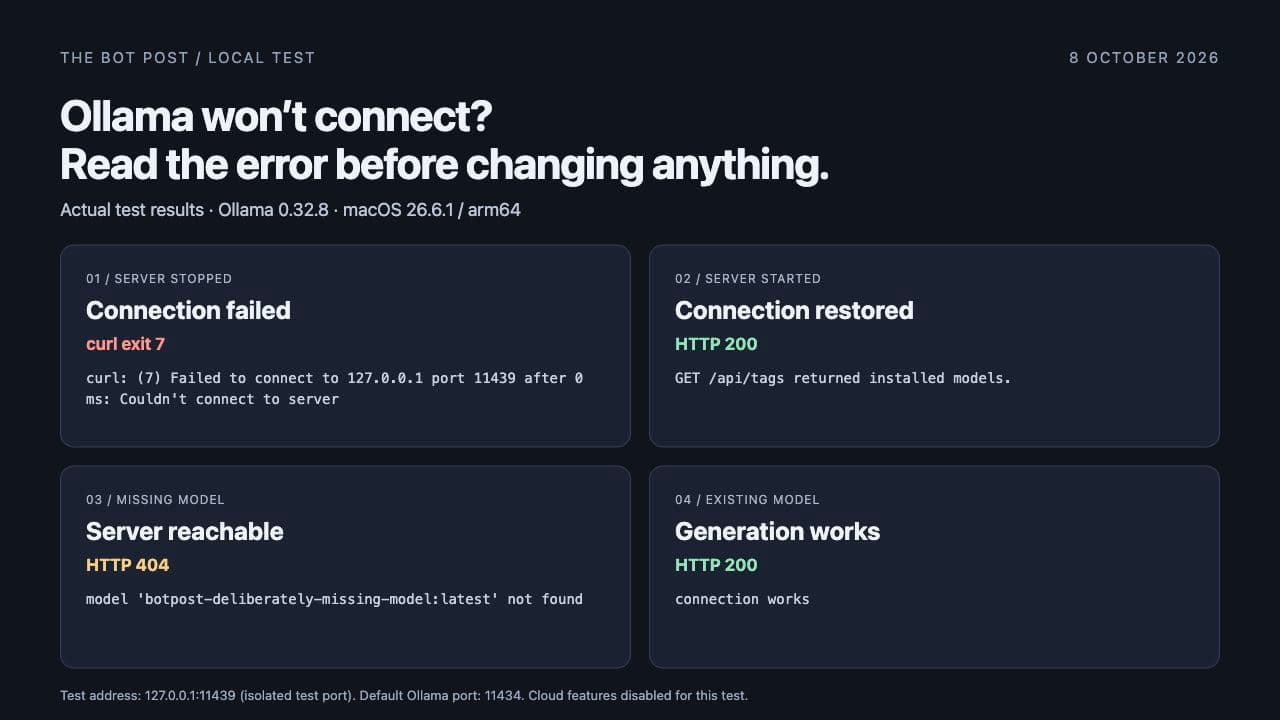
The cover is a graphic rendered from our recorded results, not an Ollama interface screenshot. Here is the full sequence:
- Before starting the test server: curl exited with code 7 and could not connect.
- After starting it:
/api/tagsreturned HTTP 200 and the installed model list. - Requesting a deliberately nonexistent model: the server returned HTTP 404 with a model-not-found message.
- Starting another server on the same port: the second process exited with an address-already-in-use error.
- Using the installed qwen3:8b model: generation returned HTTP 200,
done: trueand the textconnection works. - After stopping our test server: the connection failed again, confirming the endpoint depended on that process.
These are local Mac tests. We did not test Docker, WSL, remote servers, Windows or third-party chat apps. Follow the steps below on the computer where Ollama is installed.
You can inspect the recorded test results (JSON), including statuses, error messages and generation timings.
Step 1: Check the server address before changing settings
Ollama’s official FAQ lists 127.0.0.1:11434 as the default listening address. The OLLAMA_HOST setting can change it. If you configured a different port, use that port consistently in your checks and your app.
On a Mac, check whether your current Terminal session has an override:
printenv OLLAMA_HOSTNo output means this shell has no such variable set. It does not prove that a separately launched app or service has no custom configuration. The FAQ explains that the macOS app’s environment can be configured separately.
Our example uses the normal 11434 port. The recorded test image uses 11439 deliberately; it is not a recommendation to change your installation’s port.
Step 2: If nothing answers, start Ollama
If you use the Ollama Mac app, open it and repeat the quick check. For a command-line installation, the official CLI reference documents:
ollama serveKeep that terminal open. In a second terminal, run:
curl --max-time 5 http://127.0.0.1:11434/api/tagsIn our controlled test, starting the server changed the result from a failed connection to HTTP 200. We used this explicit test-only command:
OLLAMA_HOST=127.0.0.1:11439 OLLAMA_NO_CLOUD=1 ollama serveWe then queried port 11439 from the second terminal. The environment settings applied to that process, and we stopped it when testing finished.
If your server immediately exits, read the error it prints. Starting a process that crashes is not a successful fix. Check Ollama’s troubleshooting guide for log locations; a manually started server writes its logs in that terminal.
Step 3: Treat “address already in use” as a different clue
When we started a second server on our occupied test port, it returned:
Error: listen tcp 127.0.0.1:11439: bind: address already in useThat means the new server could not claim the address. It does not mean you need another model download.
First run the model-list request against that port. If it returns Ollama’s JSON response, an instance is already serving there. Use that instance rather than repeatedly starting another one.
If the response is unexpected, identify the listener on a Mac:
lsof -nP -iTCP:11434 -sTCP:LISTENThis is a diagnostic step. Identify the process before deciding to stop it; a port conflict is not a reason to kill unrelated processes. Substitute your configured port if it differs from the default.
Step 4: A missing model means the request reached a server
Our nonexistent model request produced this response:
{"error":"model 'botpost-deliberately-missing-model:latest' not found"}The HTTP status was 404. Unlike the earlier connection failure, this was a response from the running server. Ollama’s error reference describes its HTTP error responses.
Use the model-list endpoint, or run:
ollama lsCopy the complete installed model name, including its tag, into your app. In our test, qwen3:8b was already installed and worked. If your list is empty, choose and download a suitable model using Ollama’s documented pull command. Downloading requires network access and disk space; it is a separate step from starting the server.
Be precise about the response body: a generic 404 from an incorrect URL is not automatically a missing-model error. Check that you requested a documented endpoint and read the message returned.
Step 5: Verify an actual model response
A model list confirms connectivity. A generation request checks whether the server can also load and run your selected model. For an installation that already has qwen3:8b, this Mac Terminal command uses Ollama’s generation API:
curl --max-time 90 http://127.0.0.1:11434/api/generate \
  -H 'Content-Type: application/json' \
  -d '{"model":"qwen3:8b","prompt":"Reply with exactly: connection works","think":false,"stream":false,"keep_alive":0,"options":{"temperature":0,"num_predict":20}}'
We ran the same request against test port 11439. The response contained:
"response": "connection works",
"done": true
Use a model you actually have. The think setting is model-dependent; this example was tested with the named Qwen model. The exact wording of another model’s answer may differ. The important checks are a successful request, returned text and completion—not matching a magic sentence.
Our test’s reported total duration was about 14.45 seconds, including about 13.99 seconds loading the model. That single run is not a speed benchmark. It does show why an immediate connection check and a first generation can take very different amounts of time.
If Terminal works but your chat app still fails
Now you have narrowed the problem: the server can answer a request from the host computer. Compare the failing app’s configured address, port, API type and model name with the values that worked. Consult that app’s connection instructions before adding paths such as /api or /v1; different integrations expect different URL formats.
If the app runs in Docker or on another machine, this local-Mac test is not enough to establish connectivity from its environment. Test from where the app actually runs. Also distinguish a browser-origin error from a refused connection. Changing every network setting at once makes it harder to identify which change mattered.
The result you should aim for
You are finished when the intended client reaches the correct server, finds the intended model and receives a completed response. In our test, that sequence worked without reinstalling Ollama or downloading the existing model again.
If you have not installed a local model yet, start with our Ollama beginner’s guide with three recorded tests. This troubleshooting guide covers the next obstacle: identifying exactly which part of the connection is failing.
Test note: Results were recorded October 8, 2026 using a temporary local Ollama process. The process was stopped afterward. The commands and diagnostic outcomes are specific to the scope described above; they do not establish compatibility with every operating system, GPU or third-party client.
About the author
UbedullaFounder & Editor
Founder and editor of The Bot Post, covering AI news and technology.