AI Missing Parts of Your PDF? Fix Text, Tables and Charts
A PDF can look readable while hiding its chart values from text extraction. Our three-file test shows why, with practical fixes and a free test kit.
The summary sounds convincing. Then you check the original report and notice that the AI skipped the chart, mixed up a table or missed the sentence that changes the conclusion.
Before rewriting your prompt, check what your PDF actually contains. A page can look perfectly readable to you while giving a text-only reader only part of its information.
The practical fix: identify the missing content, give it to the tool in a readable form, and verify a few exact facts before requesting a summary. For a scan, that may mean OCR. For a chart, it may mean uploading the relevant page as an image. For a table, the original spreadsheet is often the more useful source.
This guide includes our own three-file experiment, a downloadable test kit and a workflow that does not require coding. It does not assume that every AI app processes PDFs the same way.
What our three-file test revealed
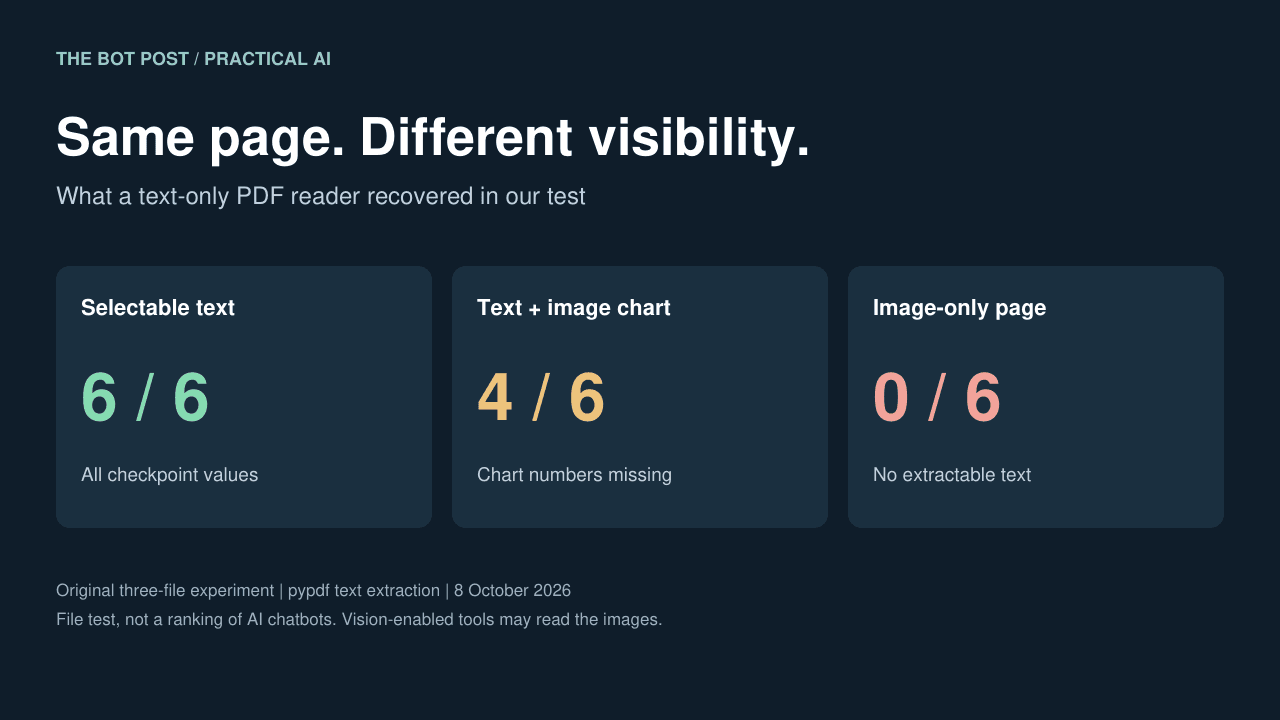
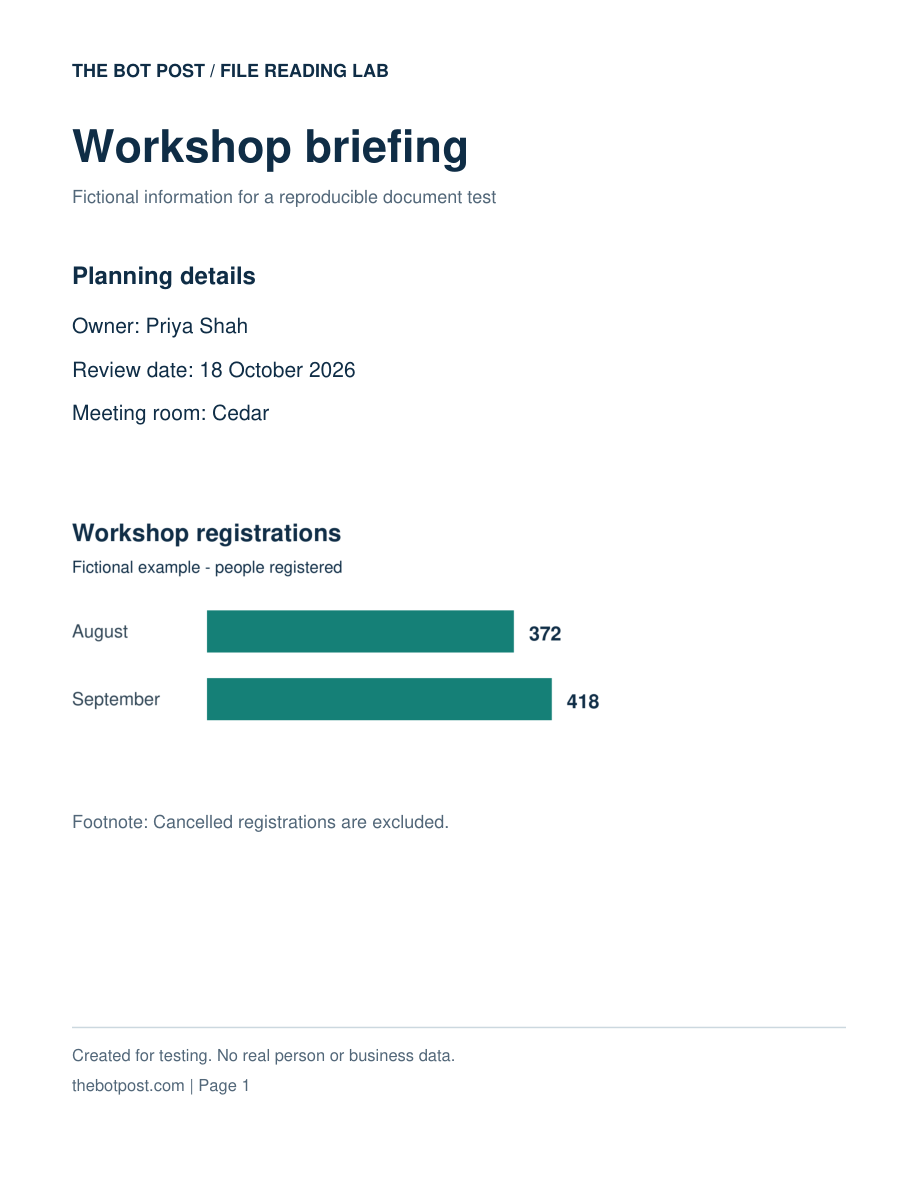
We created three one-page PDFs containing the same fictional workshop briefing. All displayed an owner, review date, meeting room, two registration counts and a footnote. We then used pypdf 6.19.0 to extract their text, without OCR or an AI model.
| File version | Facts recovered | What was missing |
|---|---|---|
| Selectable text, including chart labels | 6 of 6 | None of our checkpoints |
| Selectable paragraphs, chart stored as an image | 4 of 6 | Both chart values |
| Whole page stored as an image | 0 of 6 | All six checkpoints |
The middle result matters most. Being able to copy the first paragraph does not prove that the rest of the page will survive text extraction. In our mixed file, the owner and deadline survived; the chart numbers did not.
Scope: these are constructed file tests, not ChatGPT, Claude or Gemini scores. A tool that reads page images may recover information our text extractor missed. The pypdf documentation explicitly distinguishes text extraction from OCR.
Download the PDF reading test kit (ZIP): three sample PDFs, an answer key, recorded results and an optional local verification script. You can also inspect the test results directly.
1. Find out what is missing before changing tools
Open the original PDF and choose three checkpoints: one sentence, one number and one item inside a chart or table. Try copying each into a plain-text editor. If your viewer offers text export, inspect that too.
Treat this as a clue, not a perfect detector. Some viewers recognize text in images automatically, and a scanned PDF may already contain an OCR layer. What matters is whether the exact information survives the route you are using.
- No useful text survives: look for an original digital file or apply OCR.
- Paragraphs survive but chart values do not: supply the chart visually, or provide its underlying data.
- Numbers survive but rows become jumbled: recover the original table structure before calculating.
- Everything survives but the answer still omits a section: focus the task on named pages and check the output against those pages.
Ask for a small extraction before a broad summary. It is easier to notice that “September: 418” is missing than to judge whether a fluent paragraph covers every important detail.
2. Repair a scan with OCR or an original export
If you still have the document that produced the PDF, export a fresh copy with selectable text. Check the new file rather than assuming the export preserved everything. Avoid turning a good text document into screenshots just to package it as a PDF.
For a scan, optical character recognition identifies letters inside the image. It can help make those words available to a text-reading workflow, but the recognized text still needs checking.
Google Drive route: upload a permitted copy, right-click it and choose Open with → Google Docs. Google recommends a file of 2 MB or smaller, upright orientation and clear text. Its conversion guide warns that tables, columns and footnotes may not transfer reliably. This route produces a Google document; it does not silently repair the original PDF.
Acrobat route: open a backup copy, choose All tools → Scan & OCR → In this file, select the page range and language, and run Recognize Text. Adobe says this adds a searchable text layer. Check the result and save it as a separate file. See Adobe’s OCR instructions.
These two app workflows are documentation-based instructions; we did not run either service in our experiment. Check names, dates, decimal points and negative signs after conversion. An OCR mistake can become a confident mistake in the later summary.
3. Give a missing chart its own readable input
Export or capture the relevant page as a clear PNG or JPEG and attach it in an AI chat that accepts images. Keep the chart title, axis labels, units, legend and footnote in the image. Cropping down to the bars alone removes information the reader needs.
Start with a transcription request rather than an interpretation:
Read only the attached chart. List its title, units, categories, labelled values and footnotes. If a value is not explicitly labelled, say whether you are estimating it. Mark anything unreadable instead of guessing. Do not interpret the trend yet.
For our sample, the answer key is August: 372 and September: 418 registrations. The footnote excludes cancelled registrations. Check those details yourself before asking what changed.
Upload behavior also varies by product and document size. Claude’s current file-upload documentation says it analyzes PDF visuals for documents of 100 pages or fewer, but uses text-only processing for PDFs of 101–1,000 pages. A relevant excerpt can therefore matter more than a longer prompt.
For developers, OpenAI’s Responses API documentation describes PDF input that includes extracted text and page images on vision-capable models. That is API behavior, not a guarantee about every ChatGPT upload workflow. Our experiment does not identify the internal reader used by your app.
4. Preserve the meaning of a table
When the task is calculation, ask for the original spreadsheet or CSV if available. A screenshot may show the numbers clearly while making column relationships harder to recover.
If the PDF is your only source, extract a small section first. Require the column headings, units, row labels and notes to stay attached to the values. Compare at least the first row, last row and any total with the original.
Watch for specific mistakes: a blank cell turned into zero, a percentage read as a count, a minus sign dropped, or a total counted as another data row. Do not ask the AI to calculate from a table you have not checked.
5. Use a verification prompt before the final summary
After repairing or supplementing the input, use this prompt:
Use only the attached material. Before summarizing, produce an evidence table with: requested fact, exact supporting text or visible value, PDF viewer page number, and any uncertainty. Check [insert your three facts]. If a fact is missing or unreadable, write “not found” rather than infer it. Keep source facts separate from your interpretation.
Then open the cited pages. A page reference is a way to check an answer, not proof that the answer is correct. For longer files, label excerpts with their original page ranges so “page 3” does not become ambiguous.
Once the checkpoints pass, request a summary with a specific purpose: revision notes, meeting preparation or a comparison of two sections. Our practical AI study guide covers what to do with the material after you can read it reliably.
What if the PDF contains private information?
Use a fictional or redacted sample while diagnosing the problem. Only upload real files to services your organization permits. A browser conversion tool and a local file operation have different data-sharing consequences; choose deliberately. See our AI chatbot privacy guide before uploading sensitive material.
Quick answers
Does an empty text extraction mean an AI cannot read the PDF?
No. Our image-only file produced no text through pypdf, while the page remained visibly readable. A system with image understanding or OCR may process it through a different route.
Will OCR fix every table and chart?
No. Recognizing characters does not establish which series, column or footnote they belong to. Verify the structure as well as the words.
Should I upgrade my AI subscription first?
Diagnose the file first. Try the sample kit and a small, clearly labelled excerpt in your existing workflow. Buy a different tool only after establishing which capability is missing.
Method and sources checked October 8, 2026. Original PDF experiment: The Bot Post, using pypdf 6.19.0 and PyMuPDF 1.28.2 for rendering. No AI model calls, OCR accuracy benchmark or chatbot comparison was performed. Product instructions are attributed above and may change.
About the author
UbedullaFounder & Editor
Founder and editor of The Bot Post, covering AI news and technology.